Tutorial 10 of 14
Inspect, extract and pack texture map channels
Advanced 8 min
Check single channels and pixel values of Renderloom's generated maps, pull one channel out of an RGBA data map, and build custom packed PNGs for game engines.
Game engines and 3D programs often expect several grayscale maps packed into the red, green, blue and alpha channels of one PNG, and every engine has its own order. The Texture Lab has three sections for that work: Inspect map channels, Extract a channel from a data map and Custom channel packing. Open the lab with Labs → Texture Lab in the toolbar and generate maps from your image first (see the earlier Texture Lab tutorials).
Inspect map channels
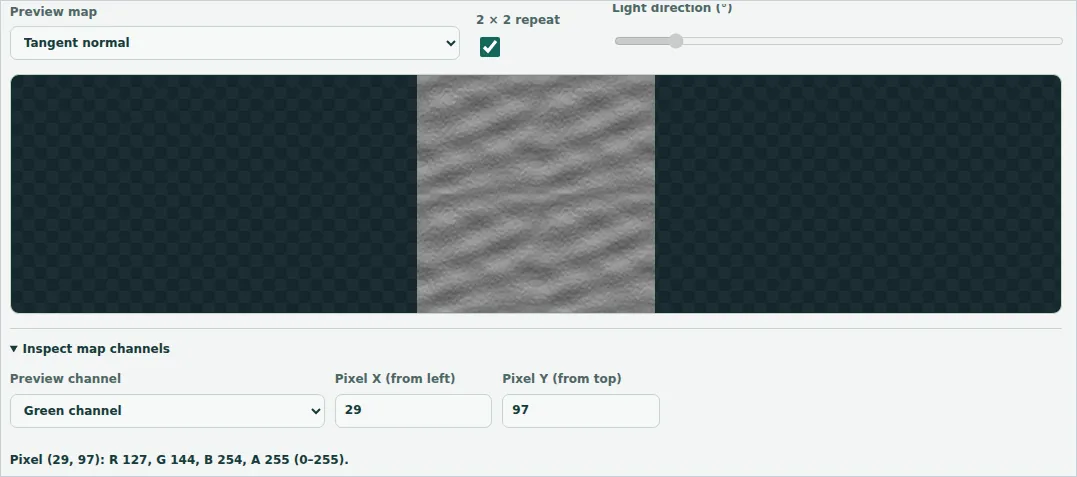
The section Inspect map channels shows the map you are viewing.
- Preview channel: Full map or one of Red channel, Green channel, Blue channel, Alpha channel. A single channel is shown as opaque grayscale.
- Pixel X (from left) and Pixel Y (from top): type coordinates, or click the preview. The line below reports the bytes, for example Pixel (0, 0): R 108, G 108, B 112, A 255 (0–255).
The values are the generated map bytes before any display compositing, so a pixel that looks dark because of transparency still reports its real RGB. The channel preview never changes an export.
Extract a channel from a data map
Sometimes the data you need is already packed in a file from another tool, for example roughness in the green channel of an ORM map. Load it under Data map PNG. Renderloom accepts a non-interlaced 8-bit RGB or RGBA PNG, 2–1024 pixels per side and under 8 MB. RGB images count as fully opaque unless they contain a transparency key.
- Choose the Source channel: Red, Green, Blue or Alpha.
- Tick Invert channel if the target expects the opposite (smoothness instead of roughness, for example).
- Download extracted PNG saves the channel as an opaque grayscale PNG.
Values are read as raw bytes, including the RGB of transparent pixels, and embedded color metadata is ignored. Clear imported data map forgets the file. Until you save it, the file only lives in this browser tab.
Keep the data map in the project
Save data map in material project stores one raw RGBA data map in the material. Load saved data map brings it back into the inspector, and Remove saved data map from project deletes it. Saving creates a version 2 project, and using the saved map for packing creates version 3; older Renderloom versions cannot open these projects. The project file must stay under 6.1 MB.
Build a custom packed map
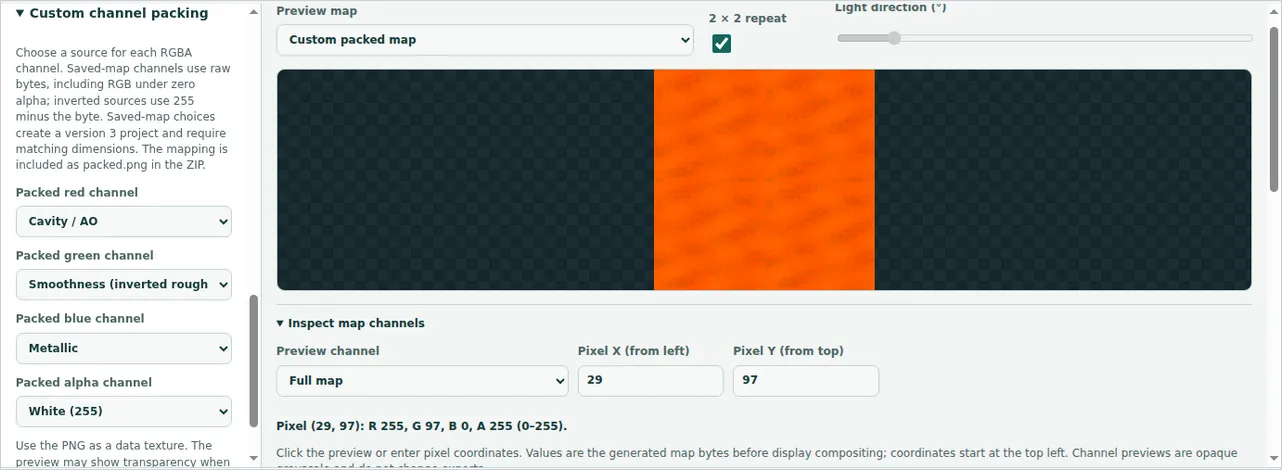
In Custom channel packing, choose a source for Packed red channel, Packed green channel, Packed blue channel and Packed alpha channel. The sources are the generated maps (Cavity / AO, Roughness, Metallic, Height), their inverted versions (for example Smoothness (inverted roughness)), constant Black (0) or White (255), and, once a data map is saved in the project, its four channels as Saved map red … Inverted saved map alpha. Saved-map channels need the same dimensions as the generated maps.
The result is part of the material ZIP as packed.png. Use it as a data texture: the preview may look transparent when alpha is not white, which is expected.
Two quick variants without changing the ZIP
Below the extractor are two separate downloads. They are not added to the material ZIP.
- Replace packed channel + Download combined packed PNG: replaces one channel of the current custom packed map with the selected raw source channel. All other channels are copied byte for byte. Both maps must have identical dimensions.
- Download green-inverted PNG: a copy of the loaded data map with only the green byte inverted, the usual switch between OpenGL- and DirectX-style normal maps. Red, blue and alpha stay as they are. It does not detect which convention your file uses.
Before you import a packed map, check the target application's channel order and color-space setting; packed data maps are usually imported as non-color (linear) data.
Ready to try it?