Tutorial 12 of 14
Export PBR texture sets from Material Nodes
Intermediate 7 min
Render a Material Nodes graph at up to 1024 px and download base color, normal, ORM or mask map, roughness, metallic, occlusion and 16-bit height for glTF, Unreal or Unity.
Material Nodes exports the maps of your graph as a texture set whose file names, normal convention and channel packing follow the engine you choose. Open Labs → Material Nodes from the Renderloom toolbar and build or load a material first (see Build a seamless material with Material Nodes).
Choose size and engine
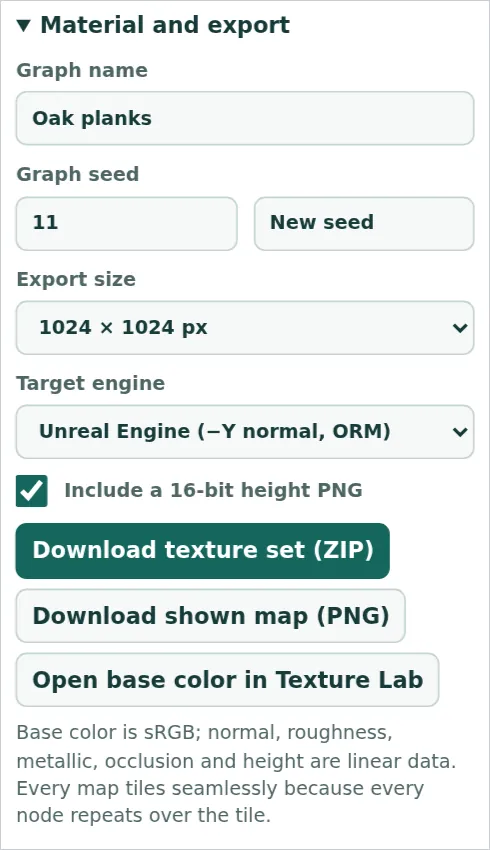
Open Material and export in the right column.
- Export size: 128, 256, 512 or 1024 pixels per side. Node settings are fractions of the tile, so a 1024 px export looks like the preview, only sharper.
- Target engine:
- glTF 2.0, Blender, Godot (+Y normal, ORM) writes files such as
Red-brick-wall.baseColor.pngandRed-brick-wall.occlusionRoughnessMetallic.png. - Unreal Engine (−Y normal, ORM) inverts the green channel of the normal map and names the files
_BaseColor,_Normal,_ORMand so on. - Unity HDRP (+Y normal, mask map) writes a
_MaskMap.pngwith metallic in red, ambient occlusion in green, a detail mask of 0 in blue and smoothness (1 − roughness) in alpha. - Include a 16-bit height PNG adds a grayscale height map with 65536 levels for displacement.
Download
Press Download texture set (ZIP). The status line shows Rendering the texture set… and then Texture set saved: maps, packed map, graph and manifest. The ZIP contains:
- base color (sRGB), normal, the packed map, roughness, metallic, occlusion and height PNGs,
- the 16-bit height PNG if you kept it,
- the editable graph (
.renderloom-material-graph.json), export-manifest.json, which lists every file with its map and color space and names the four packed channels.
Download shown map (PNG) saves only the map chosen in Show at the export size (the base color when the sphere or plane is shown).
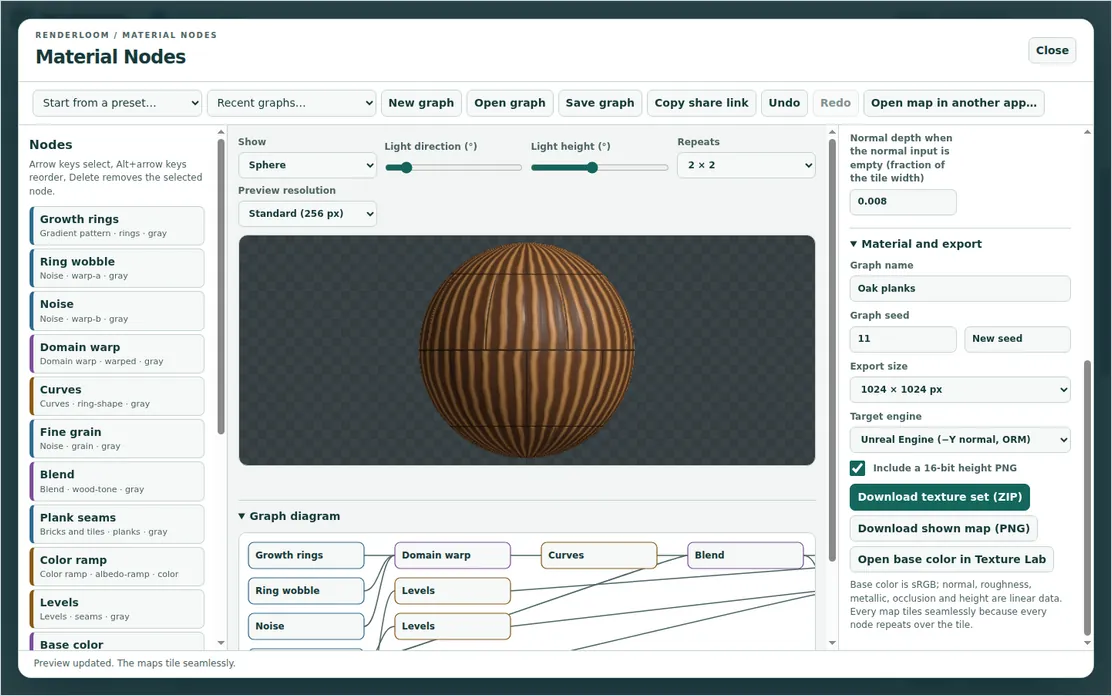
Import into your engine
Import the base color as sRGB and every other map as linear data (sRGB off) — the manifest repeats this per file. Use the normal map with the convention you exported; if lighting looks inverted on bumps, you picked the other engine's convention.
All maps tile seamlessly, so set the texture wrap mode to repeat and scale the UVs instead of using a bigger texture.
Continue in Texture Lab
Open base color in Texture Lab renders the base color at the export size and opens it as a Texture Lab source. There you can inspect single channels, pack custom channels or derive maps from the image the classic way.
Use the same engine on the site
The same engine runs as three site tools with forms, a JSON API and MCP: Procedural Material Graph (PBR) evaluates a graph and shows the sphere, Seamless Noise Texture Generator makes single noise tiles and PBR Texture Set Export (glTF, Unreal, Unity) writes the same ZIP as this dialog. Find them under Tools in the toolbar.
Ready to try it?