Tutorial 13 of 14
Share a Renderloom scene with your team
Intermediate 6 min
Save a Renderloom scene to a shared workspace, invite people with roles, edit it together live, comment on solids and give viewers a read-only scene.
Shared workspaces let several people work on one Renderloom scene: one person blocks out the solids while others try cameras and light rigs. Saving to a workspace is optional: without an account, Renderloom keeps working in this browser exactly as before.
Save scene to a workspace
- Open or build the scene you want to share.
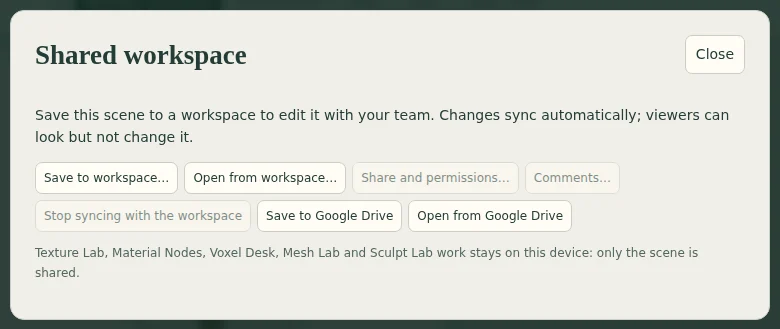
- Choose Workspace… → Save to workspace…. Sign in with a passkey or Google if you are asked to.
- Pick a workspace (or create one), check the title and choose Save.
The status chip next to the scene name now shows the workspace and Saved to …. From now on every change is saved to the workspace a moment after you make it, and your copy in this browser stays as well.
Invite your team and set permissions
Choose Workspace… → Share and permissions…. You can invite people with a link, give them a role (admin, member, viewer or guest) and set rules for this one document, for example "view only" for a client. The dialog also shows a direct link to the shared scene: anyone with access opens it with that link, or with Workspace… → Open from workspace….
Work together live
When a teammate saves a change, it appears in your scene automatically, and the chip shows the avatars of the people who have the same scene open. If you both changed it at the same time, Renderloom asks you what to do: load their version, keep yours and overwrite theirs, or save yours as a copy.
Workspace… → Comments… lists the discussion of the scene. A comment can be about the whole scene or about a solid: select it first, then choose it under About. Show next to a comment selects that object again.
Viewers see a read-only scene
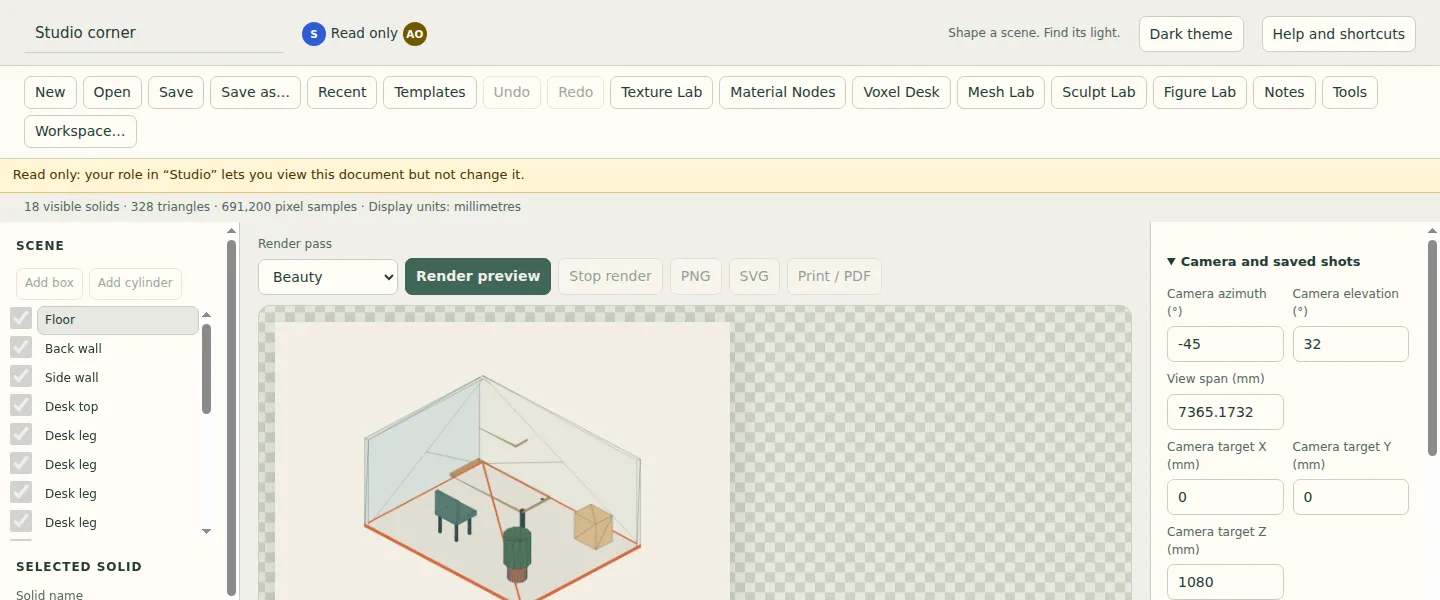
People with the viewer role (or a "view only" rule) get a yellow notice above the work area and Read only in the chip. They can select solids, render previews of every pass and export images, but every edit is refused and the editing fields are switched off. A teammate's changes still arrive live.
What is shared
The scene is one workspace document (up to 2 MB): solids, finishes, camera, saved shots, light and render settings and notes. Rendered images are made on each device. Texture Lab, Material Nodes, Voxel Desk, Mesh Lab and Sculpt Lab work is not part of the scene: images, meshes, voxel models and material graphs stay on this device, so save them as files to pass them on.
Workspace… → Stop syncing with the workspace disconnects this browser from the shared scene; your copy stays here. Opening another file or template also stops syncing, so the shared scene is never overwritten by accident.
Ready to try it?